
Download WinSetView – Free File Management Utility for Windows, Mac, Android & iOS
WinSetView is a lightweight, free, and open-source file management utility designed for PC users who want greater control over folder views in Windows Explorer. Developed by LesFerch, this powerful tool allows users to customize and apply consistent folder views across individual or all directories with just a few clicks. Unlike full-featured file managers such as Multi Commander, WinSetView doesn’t replace Windows Explorer—it enhances it.
With support for multiple view modes including Details, List, Tiles, and more, WinSetView gives you the flexibility to fine-tune how files and folders are displayed. You can set global column headings, adjust column widths, show file extensions, disable grouping, and even apply settings to system folders like "This PC" and "Network." The software is completely safe, secure, and reversible—any changes can be undone with a single click. Whether you're a power user, a digital organizer, or someone tired of reconfiguring folder views every time you open a new directory, WinSetView offers a seamless and efficient solution.
Download WinSetView today and take full control of your file management experience.
Enhanced Folder View Customization with WinSetView
One of the most frustrating aspects of using Windows Explorer is the inconsistency in folder views. Every time you open a new folder, the view settings reset to defaults, or worse, they’re applied differently based on folder type. WinSetView solves this problem by offering a centralized, intuitive interface to define and apply custom folder views across your entire system. The tool operates via a simple .hta file, which launches a standalone GUI without requiring installation—making it portable and ideal for both personal and work environments.
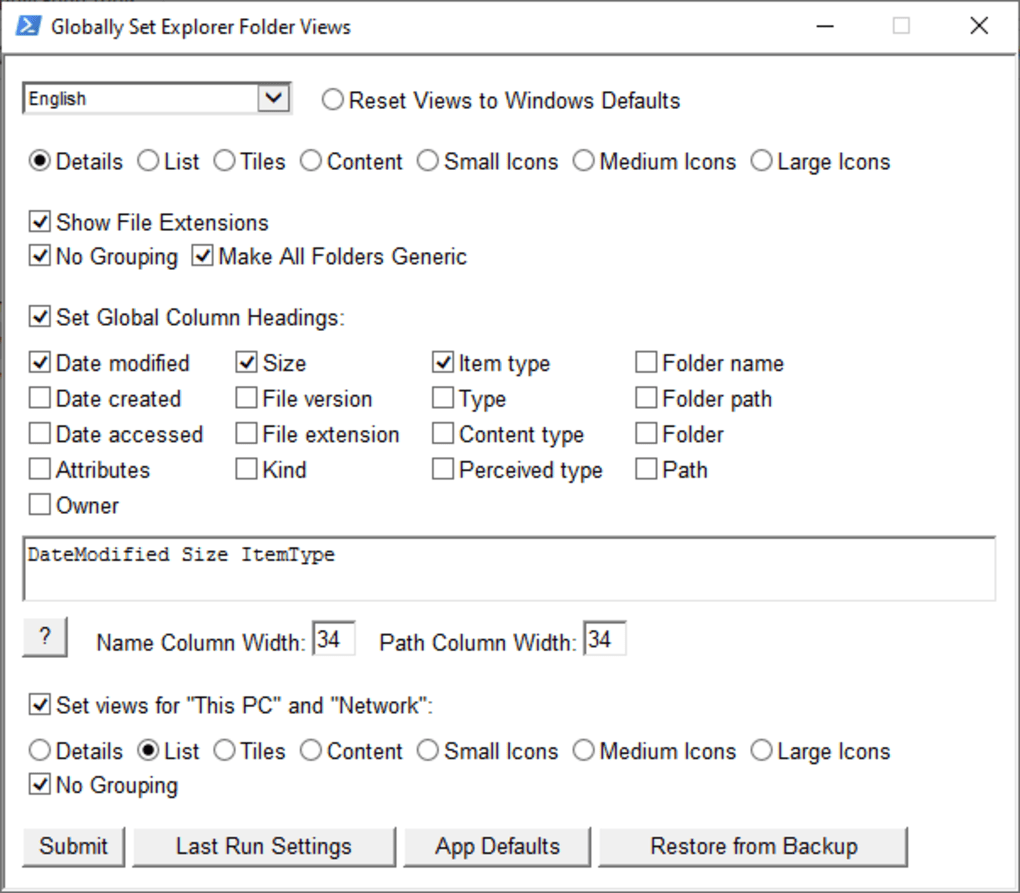
Upon launching, users are greeted with a clean layout featuring multiple view options such as Details, List, Tiles, Icons, and Content. Each view can be customized independently. For instance, in the Details view, you can specify which columns appear—such as Date Modified, File Size, Item Type, Path, and Attributes—and even set their widths. This level of granular control is absent in native Windows Explorer, where column management is limited and inconsistent across folders. WinSetView also allows you to enable or disable file extensions, prevent file grouping, and make all folders generic—ensuring uniformity across your file system.
Another standout feature is the ability to apply settings to "This PC" and "Network" locations, which are often ignored by standard Windows settings. This ensures that your preferred view is maintained even when browsing system drives or network shares. The tool also supports saving and restoring configurations, so you can back up your preferred settings and restore them later. Whether you're managing a large media library, organizing documents, or working with code repositories, WinSetView ensures your file views remain consistent and efficient.
Easy Installation, Usage, and Backup Features
WinSetView stands out not only for its powerful features but also for its simplicity in setup and usage. There’s no complex installation process—just download the .hta file, double-click it, and the application launches instantly. This portable nature makes it perfect for users who frequently switch between devices or prefer not to install software on their machines. No admin rights are required, and no registry changes are made, ensuring a secure and non-invasive experience.
Once launched, the interface is straightforward and user-friendly. The top row displays view mode options, while the middle section lets you toggle features like showing file extensions, disabling grouping, and making all folders generic. For advanced users, the "Set Global Column Headings" feature allows you to define which columns appear in each view and adjust their widths—ideal for creating a consistent, professional workspace. For example, you can set the Name column to 300px and the Path column to 400px, ensuring all folders display information clearly and uniformly.
WinSetView also includes robust backup and recovery tools. You can save your current settings as a backup file, which can be restored later using the "Restore from Backup" option. This is particularly useful when experimenting with new configurations or troubleshooting issues.
The "App Defaults" button resets all settings to their original state, while the "Last Run Settings" feature automatically loads your previous configuration. If you ever want to revert to the default Windows Explorer view, simply click "Reset Views to Windows Defaults" at the top of the interface. This safety net ensures you can experiment freely without fear of permanent changes.
Compatibility, Pros, and Cons of WinSetView
WinSetView is compatible with all major versions of Windows, including Windows 10, Windows 11, and Windows Server. While it’s primarily designed for desktop PCs, its lightweight footprint and portable nature make it ideal for use on laptops, workstations, and even USB drives. Although it currently doesn’t have native support for Mac, Android, or iOS, its open-source nature means the community could potentially develop versions for other platforms in the future.
Pros:
- Free and open-source – No cost, no ads, no tracking.
- Portable and secure – No installation required, no registry changes.
- Full control over folder views – Customize Details, List, Tiles, and more.
- Global column settings – Set column order, visibility, and width across all folders.
- Backup and restore – Save and load configurations easily.
- Reversible changes – Reset to Windows defaults anytime.
Cons:
- Limited to Windows – No native support for Mac, iOS, or Android.
- No real-time preview – Unlike modern file managers, it doesn’t offer thumbnails or preview panes.
- Minimal UI design – The interface is functional but not visually modern.
- Requires .hta execution – Some security software may flag .hta files.
Frequently Asked Questions (FAQ)
Is WinSetView safe to use?
Yes, WinSetView is completely safe. It’s open-source, lightweight, and doesn’t install any software or modify the registry. It runs as a standalone .hta file, making it non-invasive and secure.
Can I use WinSetView on Mac or Linux?
Currently, WinSetView is only available for Windows. However, its open-source code is available on GitHub, and developers could potentially port it to other platforms.
How do I reset my settings to default?
Click the "Reset Views to Windows Defaults" button at the top of the interface. This will restore all folder views to their original Windows Explorer settings.
Can I back up my custom views?
Yes, WinSetView allows you to save your current settings as a backup file. You can later restore them using the "Restore from Backup" option.
Does WinSetView require admin rights?
No, WinSetView runs without admin privileges. It’s designed to be portable and accessible to all users.
Final Verdict: A Must-Have Tool for File Management Enthusiasts
If you’re someone who values consistency, efficiency, and control over your digital workspace, WinSetView is an essential tool. It fills a critical gap in Windows Explorer by allowing you to apply uniform folder views across your entire system—something the native file manager simply doesn’t do well. With its intuitive interface, powerful customization options, and secure, reversible changes, WinSetView delivers real value without complexity.
Whether you're a student organizing research files, a professional managing project folders, or a tech-savvy user who hates repetitive setup, WinSetView saves time and reduces frustration. Its portability and open-source nature make it trustworthy and future-proof. While it lacks support for non-Windows platforms, its core functionality is unmatched in the free software space.
Download WinSetView today and take full control of how your files are displayed. It’s free, secure, and ready to use—no strings attached. Enhance your file management experience and make every folder look exactly how you want it.







